
User guide
This page walks through KubeDrive screen by screen. If you have not opened a cluster yet, start with Your first cluster; the keys mentioned here are listed on the shortcuts page.
The window
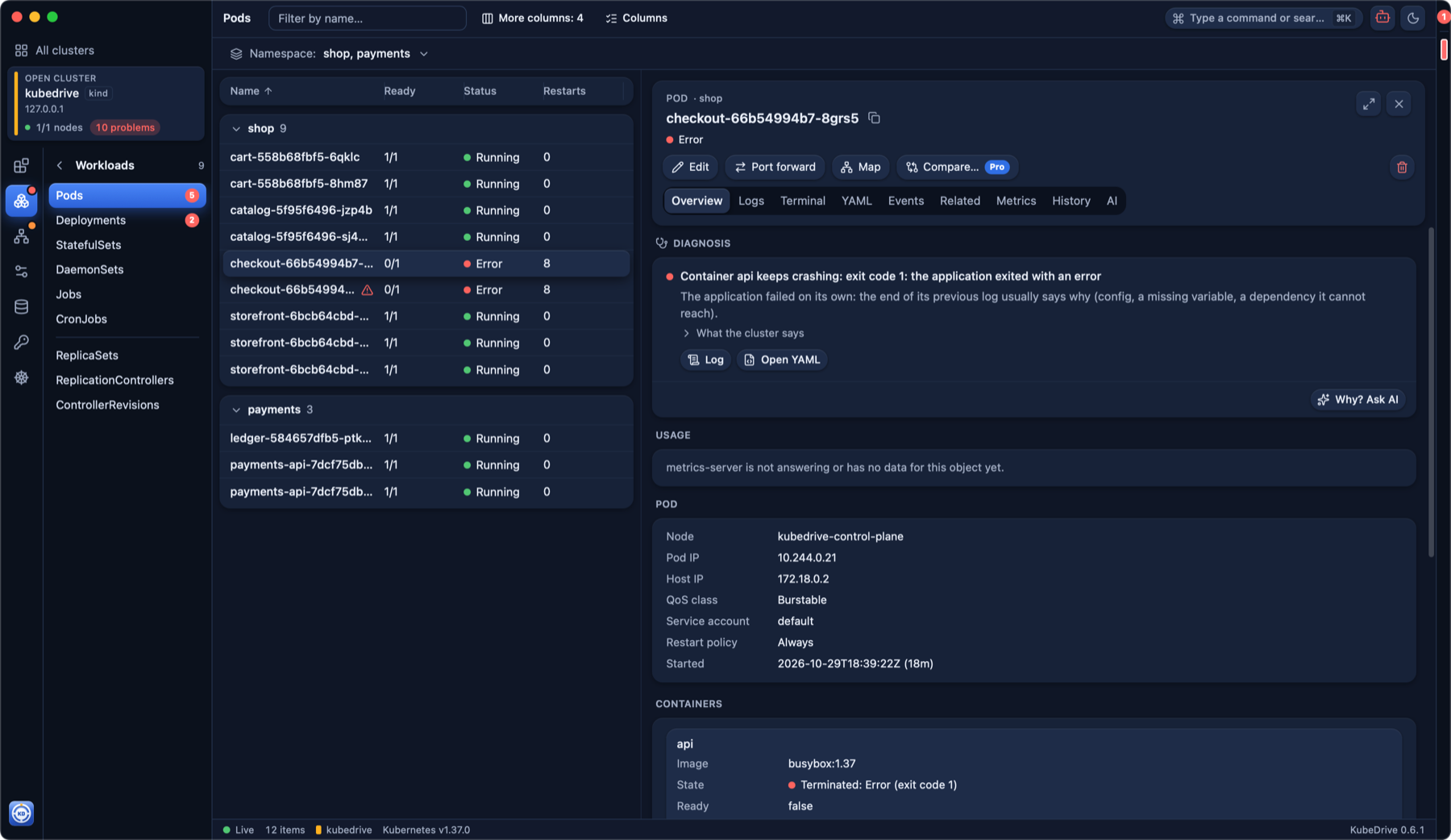
- Title bar: the cluster’s name, the command palette (⌘K), the AI Agents indicator and the theme button. The title bar drags the window.
- Tabs appear under it from the second tab on.
- Sidebar: the cluster card, then the sections of resource types. The port forwards you started sit at the bottom, visible from every cluster.
- Main area: a table of objects, and the details panel beside it when an object is open.
- Right edge: a mark for each pinned and recent cluster, coloured by its status; hover it to switch clusters (see Switch clusters).
Clusters
The Clusters overview lists every context of your kubeconfig, grouped into Cloud, Other and Local, with its status (reachable, no response, needs a login) and, for an open cluster, the problems in it. The Show list in the sidebar filters it. Three layouts: Cards, List and Compact. Click a cluster to open it; the pencil on a card opens its settings:
- Name: what KubeDrive calls the cluster. Your kubeconfig is not changed.
- AWS account: a name for the account number, shown on every cluster in that account.
- Protection: auto (from the context name), always or never. A protected cluster gets a red window frame, and every change asks you to type the object’s name.
The Free plan keeps two clusters open at once. A cluster is open while it has a tab; close its tabs to free the slot.
Cluster overview
The card at the top of the sidebar shows ready nodes and how many problems need attention; click it for the Overview:
- Nodes and Pods: ready and running counts, pending and failed pods, the kubelet versions, and a note when a kubelet differs from the control plane.
- Capacity: CPU and memory requests, limits and live usage for the cluster and each node. Usage needs metrics-server in the cluster; without it you see requests only.
- Needs attention: crash loops, OOM kills, image pull errors, unschedulable pods, stuck rollouts, failed Helm releases, nodes not ready, Services with no pods or no ready ones, Ingresses whose backend Service is gone, volume claims a pod waits for. Each one shows its cause from the Diagnosis (below) where a rule finds one, and is a click away from the object.
- Warnings · last hour: warning events grouped by reason.
The same problems show everywhere in the cluster: each section of the sidebar and each type in it carries a count of objects that need attention (red when one is critical), and a row that needs attention has ⚠ after its name; hover over it for the cause.
The overview refreshes itself while it is open. On a large cluster it counts the first 5000 objects of each kind.
Resource tables
The sidebar’s sections (Workloads, Network, Config, Storage, Access, Cluster, Custom Resources, Helm) list the resource types the cluster serves, including CRDs. Click a section to see its types; G then a letter jumps to the common ones (G P for Pods).
Tables show the same columns as kubectl get, live: rows change as the cluster changes.
- Filter by name with /; sort by clicking a header.
- More columns adds the
-o widecolumns; Columns hides and shows any column for the type. Drag a header’s edge to resize it, double-click to fit. KubeDrive remembers both per type. - Pods and nodes get CPU and Memory columns when the cluster has metrics-server.
- Rows are grouped by namespace when several namespaces are shown; a group you may not read says so in its header while the others still load.
Namespaces
The namespace button under the table header opens the picker (N). Check several namespaces (up to ten), use only this to switch to one, or choose All namespaces. Two or more checked namespaces can be saved as a set; sets and recent selections are kept per cluster and are one key away in the palette (⌘⇧N). If your role may not list namespaces, type a name instead.
Object details
Click a row (or press ↩) to open the object beside the table; ⌘-click opens it in a new tab. The panel can be widened to the full window and closed with Esc. Its sections:
- Diagnosis, at the top of the overview when something is wrong: the cause, found by KubeDrive’s own rules without AI, offline and free. A container that crashes, with its exit code explained and the last lines of its log; an image that does not exist or needs credentials; a missing ConfigMap, Secret or key; a pod no node can take, checked node by node (cordon, taints, selectors, free CPU and memory: “requests 4 CPU, the most free node has 1.8”); a failing probe; a Service that selects no pods, with the closest pod and the label that differs; an Ingress whose class, backend, port or TLS secret is missing; a claim without a storage class; a full quota, a Pod Security refusal, an autoscaler at its maximum; node conditions. Each finding shows what the cluster says and a button to where it is fixed: the YAML (a Deployment’s template for its pods), the log before the crash, the object involved. Why? Ask AI under it hands the object to the assistant, which starts from these findings.
- Overview (O): what
kubectl describewould tell you, in a readable form: status and conditions, the reason a pod is not running, containers with their images, exit codes and restarts, labels, annotations, owners and the objects it owns. - YAML (Y): the object without
managedFields, in an editor with completion from the cluster’s own schema (⌃Space). See Editing below. - Events (E): the object’s events. Kubernetes keeps them for about an hour.
- Related (R): the ownership tree: a Deployment’s ReplicaSets and pods, a pod’s owner, a Service’s endpoints.
- History (H, Pro): the changes made to the object through KubeDrive, by you or by an AI agent: every apply, scale, restart, rollback, delete and cordon, with the manifest before and after. Pick one to see the diff, or switch to then → now to compare it with the object as it is. Open in editor loads that manifest into the YAML editor, so an old state comes back through the usual review and apply. The history lives on your computer (50 changes per object, 200 MB in all); Secrets are never recorded, and changes made by other tools are not seen.
- Timeline (I): what changed before it broke, in one feed, newest first: the
cluster’s events about the object and what it is joined to, its rollouts as new ReplicaSet
revisions with the image that changed, container restarts with the exit code, the changes made
through KubeDrive with their diff, the Helm release’s revisions, and the alerts Prometheus has
firing. A rollout no change through KubeDrive explains is marked changed outside KubeDrive:
kubectl, CI or Argo did it, and the diff is not known. Linked objects adds the Services
that select its pods, their Ingresses, the ConfigMaps and Secrets it mounts and its autoscaler.
The last hour is free; 6 hours and more, which reach into the history, Helm and alerts beyond
what the cluster keeps, are Pro. Copy link gives a
kubedrive://link to the feed at this moment, for the incident chat; Explain asks the assistant (Pro) what broke and which change most likely caused it, with the timeline as its evidence. Cluster → Timeline is the same feed for the whole cluster, with filters by kind and by object; a line opens the object’s own. - Compare… (Pro), in the actions under the object’s name: pick another object of the same kind in any cluster and namespace and see the diff of the two manifests, without the fields the server owns per object (uid, resourceVersion, generation, timestamps) and, unless you tick Include status, without status. Swap sides flips the diff.
- Logs and Terminal (L, T) for pods, see below. A Deployment, StatefulSet, DaemonSet, ReplicaSet, Job or Service has a Logs tab too (Pro): the logs of every pod it selects, merged by time, each line prefixed with its pod in a colour of its own. Pick a container or a single pod to narrow it; pods that appear later join the stream. Up to 50 pods are merged.
Editing
Change the YAML and press Review changes (⌘S). KubeDrive sends the edit to the API server as a dry run and shows the diff of what would actually be stored, validated by the server. Apply then saves it with server-side apply; the row in the table updates through the watch. If the object changed while you edited the same field, you are asked to review again. On a protected cluster, applying asks you to type the object’s name.
Logs
The Logs section streams a container’s log and follows it. Choose the container (init and debug containers included), how many lines to load, timestamps and line wrapping. Previous run shows the log from before the last restart, which is where a crash loop’s reason usually is. Search the loaded log with Enter and Shift+Enter between matches, and copy it with one click. Very long logs keep the newest lines and tell you how many old ones were dropped.
Terminal
Terminal opens a shell in the container (bash when the image has it, sh otherwise) in
the panel. An image without /bin/sh (distroless) says so.
Actions
The buttons at the top of the details panel offer what makes sense for the object:
- Replicas scales a Deployment, StatefulSet or ReplicaSet; Restart replaces its pods
gradually, like
kubectl rollout restart; Roll back returns a Deployment to an earlier revision. - Run now creates a Job from a CronJob.
- Cordon, Uncordon and Drain a node. Drain respects PodDisruptionBudgets, leaves
DaemonSet pods in place and asks separately about pods with
emptyDirand pods without a controller. - Delete, with the propagation policy (
kubectl’s default, dependents first, or keep them) and Force for a stuck pod. Finalizers are named when the object has some. - Port forward, see below.
An action your role does not allow is shown but disabled. On a protected cluster every action asks you to type the object’s name.
Port forwards
Port forward on a pod, service, Deployment or StatefulSet asks for the port and a local port (leave it empty for a free one) and can open the address in your browser. Running forwards are listed at the bottom of the sidebar from every cluster, with Open, Copy address and Stop. If the pod restarts, the forward moves to the new pod on the same port. Forwards run while KubeDrive is open. The Free plan runs three at once.
Helm
Helm in the sidebar lists the releases of the namespace or the whole cluster, read from the Secrets Helm keeps. A release opens with its Overview (chart, app version, status, NOTES), Values (the ones you set, or all of them), the rendered Manifest, the revision History and its Resources with links to each object.
Roll back and Uninstall (Pro) sit under the release’s name. Roll back lists the earlier
revisions with their chart, status and age; Helm writes the chosen one as a new revision, exactly as
helm rollback does, so the helm CLI sees it too. Uninstall deletes the objects the release
created and, unless you keep its history, the release itself. In a protected cluster both ask for
the release name first.
Edit values (Pro) on the Values tab opens the values you set in the editor. ⌘S or
Preview upgrade has Helm render the release’s chart with the new values against the cluster
(a dry run) and shows the manifest diff; Upgrade then writes a new revision, like
helm upgrade --reset-values -f values.yaml with the chart stored in the release. A chart with
subcharts cannot be upgraded this way, because Helm does not keep subcharts in the release; upgrade
it to a version from its repository instead.
Charts, beside Releases at the top of the Helm screen, is the catalog. Add a repository on the
left by name and URL: an HTTP(S) repository with an index.yaml (what helm repo add takes), one
chart from an OCI registry as oci://registry/path/chart, read anonymously, or a folder on this
computer (the folder button, a path, or file:///…): a folder with an index.yaml from
helm repo index, or just chart folders and .tgz archives, which make the index. Folders are read
when the catalog asks, nothing is cached; the path syncs with the repository list, with ~ for your
home. A plain http:// repository on a public address asks once before it is added, since its index
and charts travel unencrypted; internal addresses do not ask. Repositories over http or from a
folder carry a mark in the list, and a version without a digest in its index is marked in the
install dialog: the download of such a version cannot be checked. Indexes are fetched when you add
a repository, with Update indexes, and once a day when the catalog opens. Search
finds charts by name, keyword or description across all repositories; a chart shows its README and
default values (free).
Install… (Pro) asks for the version, the release name and the namespace (it can create it), with your values in the editor beside the chart’s defaults. ⌘S or Dry run renders the chart against the cluster and lists the objects the release would create, with the manifest a click away; Install then creates them. Charts are checked against the digest in the repository’s index.
When a repository has a newer version of a release’s chart, the release shows Available: … under its name. Upgrade… (Pro) opens the values editor with the version to upgrade to; the preview is the manifest diff, as for edited values, and charts with subcharts upgrade too.
Upgrade check
Cluster → Upgrade check says what breaks when the cluster moves to a newer Kubernetes minor version, before you upgrade it. Pick the version (the next one by default); KubeDrive reads and changes nothing.
Objects already in the cluster keep working after an upgrade: the API server converts them. What breaks is whatever still writes or reads an API version the new release no longer serves, so that is what the check looks for:
- Helm releases whose stored manifest names a removed version. Helm reads that manifest on every upgrade and rollback, so after the cluster upgrade both fail with “unable to build kubernetes objects from current release manifest”.
- Manifests applied with kubectl as a removed version (from
last-applied-configuration): the nextkubectl applyof the same file fails. - Clients still calling a removed version, from the API server’s own request counts: an old controller, operator or CI job.
- Kinds removed with no successor, such as PodSecurityPolicy.
- Nodes whose kubelet is too old for the new control plane.
Each finding says what to write instead. Versions removed in the two releases after the target are listed too. The overview shows Not ready for 1.N when something breaks on the next version, and the sidebar entry carries the count.
With Pro, selecting a finding shows its manifest converted for the new version, with the fields
that moved marked (an HPA’s targetAverageUtilization, an Ingress’s serviceName), ready to copy
into the repository it comes from.
A release that will not upgrade says so in its details. Update its chart while the cluster still
serves both versions; if the cluster is already upgraded, Rewrite stored manifest (Pro) writes a
new revision of the release with the APIs mapped, the way helm mapkubeapis does, without touching
the cluster’s objects, and can be undone. The details also show the helm mapkubeapis command, and
how to install the plugin when helm has not got it.
Rightsizing
Cluster → Rightsizing compares what each container requests with what it really used, and suggests requests and limits. Usage comes from the cluster’s Prometheus over the last 24 hours, 7 days or 30 days; KubeDrive reads and changes nothing until you apply a suggestion.
- CPU request: the 95th percentile of use plus the headroom.
- Memory request: the highest use plus the headroom. A memory limit, where one is set, becomes equal to the request.
- CPU limit: dropped when the container is throttled by it, otherwise kept.
The headroom is 30% by default; change it next to the window, and Reset to 30% brings the default back.
At risk lists what may break: containers killed for memory, throttled by their CPU limit, using more than they request, or with no requests at all. Over-requested lists what reserves room on the nodes and never uses it, most first, with how much the suggestions free. The overview shows a card when something is at risk or over-requested, the sidebar entry carries the count at risk, and a workload’s details show its own numbers.
Selecting a workload shows its CPU and memory over the window with the request and the suggestion,
and the kubectl set resources command to copy. With Pro, Apply sets the suggestion in the
workload’s pod template (its pods roll), and Show YAML diff shows the change first, side by side,
with Apply at hand. A workload
a Helm release owns says so: the next helm upgrade puts the chart’s values back, so change them
there too.
Without Prometheus there is no history to size by: only containers without requests or killed for memory are shown. Point KubeDrive at a Prometheus in the cluster’s settings.
Map
Cluster → Map draws how a namespace’s objects connect, left to right: Ingresses, the Services
they route to, the workloads those Services select, their pods, and the ConfigMaps, Secrets and
PVCs the pods mount or read. Objects are grouped in lanes by app (the app.kubernetes.io/name or
app label), by Helm release, or not at all; an object several apps use sits in Shared. An HPA
shows in its workload’s card.
A link that points at nothing is a red dashed line to a dashed card:
- a Service whose selector matches no pod;
- an Ingress rule naming a Service, or a port, that does not exist;
- a pod template referring to a ConfigMap, Secret or PVC that does not exist (unless marked optional);
- an HPA whose workload is gone, or a PDB that selects no pod.
Clicking an object opens its details on the right and highlights everything it connects to; double-clicking shows that chain alone. Problems only keeps the lanes with something broken or failing. Kinds you may not list are named in the status bar, and links to them are not checked. The Related tab of an object shows the same chain, with Open on map.
The map reads only the names of Secrets, never their values. AI agents can ask for the same broken
links with the broken_links tool (see AI agents).
Settings sync
Signed in with Pro, the License window offers Settings sync: your clusters’ names and protection, namespace sets, appearance, keyboard shortcuts, column layouts, the AI and agents settings, saved PromQL queries, dashboards and chart repositories follow your account to your other computers. Turn it on with a passphrase: the settings are encrypted on your computer with a key made from it, and the backend stores only the encrypted blob, which it cannot read. Your other computers open it with the same passphrase. Sessions, cluster credentials and API keys never leave a machine.
Changes go up a few seconds after you make them and come down at start and every ten minutes, or with Sync now. When the same settings changed on two computers, the second one to sync asks which copy to keep. Change passphrase stores everything again under the new one. Lose the passphrase and the stored settings cannot be read: turn sync off and on to start over.
Metrics and PromQL
A pod, node, Deployment, StatefulSet, DaemonSet, ReplicaSet or Job has a Metrics tab
(M): CPU, memory and network over the last hour, six hours or day, read from the
cluster’s Prometheus, with requests and limits (or a node’s allocatable) as dashed lines. KubeDrive
finds Prometheus by itself: a Service named like prometheus-operated, prometheus-server or
kube-prometheus-stack-prometheus, or labelled app.kubernetes.io/name=prometheus, reached through
the cluster’s API proxy (your role needs get on services/proxy). The cluster’s settings
(Rename… on its card) can point at a URL instead, credentials included, or switch Prometheus
off. Without Prometheus the tab shows metrics-server’s live usage for pods and nodes.
PromQL (Pro), at the top of the Cluster section, runs any query as a graph over a range (15 minutes to 7 days) or as a table of instant values. ⌘↵ runs it; Save keeps it under a name across clusters, and the last twenty queries stay in the history on this computer. Click a series in the legend to hide it. Open in PromQL on a Metrics tab starts from that object’s CPU query.
Dashboards (Pro), under PromQL, are grids of queries: graphs over the chosen range and single
numbers, with variables such as $namespace and $pod whose choices come from the cluster’s
series. Cluster, Namespace and Node dashboards are built in; Copy to mine makes one you can
edit, and To dashboard on the PromQL screen adds the current query as a panel. Your dashboards
are kept in the settings.
Alerts (Pro) lists what the cluster’s Prometheus alerting rules say: firing and pending alerts with their severity, summary and labels, and every rule. An alert opens the pod, workload or node its labels name, or its rule’s expression in PromQL. The number of firing critical and warning alerts shows next to Alerts in the sidebar.
RBAC explorer
RBAC explorer at the top of the Access section (Pro) answers access questions from the cluster’s Roles, ClusterRoles, RoleBindings and ClusterRoleBindings:
- Who can: a verb and a resource (
pods,deployments,pods/log), optionally an API group, a namespace and an object name. The result lists every user, group and service account a binding grants it to, the scope (a namespace or the whole cluster), the rule and the binding → role that carries it.*rules, subresources andresourceNamesare honoured. - Subject: pick a user, group or service account and see every rule bound to it, with where it applies.
- Can I asks the API server about your own user (a
SelfSubjectAccessReview); it works on every plan.
Bindings and roles in the results open in the details panel. The bindings are read once and kept for half a minute; the refresh button re-reads them.
Tabs, palette and keyboard
- Tabs remember their place: cluster, type, namespaces, the open object and its section. ⌘T copies the current tab, ⌘W closes it, ⌘1…⌘9 switch. Tabs come back after a restart. A protected cluster’s tab has a red dot.
- Two panes: ⌘</kbd> splits the window, the new pane to the right with a copy of the current tab, so a cluster can sit next to another, or a list next to a log. Each pane has its own tabs (drag one into the other pane), its own cluster and namespace; the sidebar, the cluster edge, the palette and the shortcuts follow the pane you clicked last, marked by a line along its top. ⌘⌥→ focuses the other pane, ⌘⇧</kbd> closes a pane, the divider drags (double-click halves). The panes come back after a restart too.
- Workspaces (Pro) save a layout by name: the panes with their clusters, namespaces and tabs. The switcher sits at the left of the status bar; ⌃1…⌃9 open one by position. The window itself is the Free plan’s one workspace.
- ⌃
</kbd> switches to the most recent other cluster on the same screen; keep <kbd>⌃</kbd> down and press <kbd>again to go further. - The command palette (⌘K) switches clusters and namespaces, goes to any resource type, cycles the theme, sets the font, opens the License and AI Agents windows and checks for updates. Type to search.
- Every shortcut can be changed: press ?, click one, press the new keys.
Appearance
The theme button in the title bar (or ⌘⇧L) cycles light, dark and system. View → Text in the menu bar, or the palette, sets the font, its weight and monospaced tables.
Links
Other tools can open KubeDrive at a cluster, a list or an object with a kubedrive:// link,
for example from an alert, a runbook or a chat:
kubedrive://open?context=prod-eu&type=pods&namespace=payments&name=api-7d9f-x2k&tab=logs
kubedrive://open?context=prod-eu&view=overview
type takes a type id as the sidebar shows it (pods, deployments.apps) or a name kubectl takes
(deployments, deploy, ingress), tab one of
overview, yaml, events, related, history, logs, ai (never terminal: a link must not open a
shell), and view one of overview, helm, rbac, promql, dashboards, alerts. A link to a cluster that is not open asks before opening it.
AI assistant
The AI tab of an object asks a model why the object needs attention: KubeDrive gathers the object, its owner, its events and the logs of its failing containers, masks anything that looks like a credential (Secret values are never read) and sends them to the model you chose. The answer names the cause, quotes the evidence and suggests fixes; nothing is applied for you. Open in editor under a suggested YAML fragment lays it over the object and opens the YAML tab with the result as an unsaved edit, so the usual dry run, diff and review come before anything is applied. In the overview, the ✨ button on a problem opens that tab with the question ready; in the logs tab, ✨ summarizes the log as shown. A Helm release has the same AI tab: the assistant reads the release’s status and Helm’s own message, its revisions, the values you set (credentials masked) and the state of the workloads it created, with their events and a failing pod’s logs. When you review a YAML edit before applying it, Review under the diff asks the assistant what changes, what could go wrong and whether it is safe to apply.
Ask about a cluster (Pro) is the field under the overview’s tiles. The assistant answers by reading the cluster itself with the same read-only tools agents get (up to 8 reads per question, credentials masked, Secret values never read); each read shows as a step while it runs, and the answer names objects as links that open them in KubeDrive. The answer opens in a panel beside the overview, where you can ask follow-ups (six per thread); Recent brings back the last ten threads of the cluster, and ⌘K → Ask the assistant… puts the cursor in the field from any screen. Under a finished Why? answer, Ask a follow-up… starts a thread from that answer, so the follow-up has it as context, and Investigate… (also the magnifier on a problem in the overview) runs a root-cause investigation: up to 12 reads, an answer with the cause, the evidence, the fix and what to check. When the fix is a manifest change it comes as a fragment under a link to the object, and Open in editor lays it over that object and opens its YAML tab, where the dry run, the diff and the review come before anything is applied. The assistant never applies anything itself.
The assistant uses your own key: AI Assistant… in the app menu takes an Anthropic key (Opus, Sonnet or Haiku), an OpenAI API key from platform.openai.com (the models your account can use are listed; API use is billed by OpenAI separately from a ChatGPT subscription), or any OpenAI-compatible endpoint such as Ollama or LM Studio on your computer, or OpenRouter. Keys live in the system’s credential store. Requests go straight from your computer to the provider; before the first one you see exactly what will be sent and agree once per provider (for an OpenAI-compatible endpoint, once per server: agreeing to a model on your computer does not cover a cloud service), and What will be sent shows any request before it goes out; the assistant’s settings list your agreements, each with Revoke. A model on your computer or local network gets up to 10 minutes to start answering and 30 to finish; a cloud provider, 1 and 4.
AI agents
KubeDrive can serve the clusters you choose to Claude Code, Cursor and other agents through a local MCP server, read-only, with your own credentials. See AI agents.
Sign-in, Pro and updates
The License window (the app menu, or the palette) shows your plan and is where you sign in, start the 14-day trial, buy Pro or enter a license key: Sign-in and licensing. Updates for the downloaded app are checked only with your consent and come signed from the releases page: Install.